AMS Transfers / Bulk artwork review
DTF gang sheet builder
Upload several designs, set print sizes and copies, and choose how each file should print before adding it to your gang sheet.
Bulk upload: PNG, JPG and WebP. PDF and SVG: one file at a time.
Need artwork? Browse the free Design Library.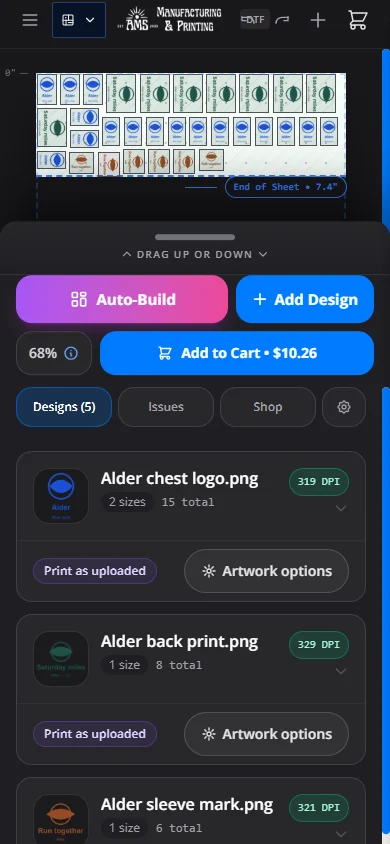
Keep each design’s sizes and copies together
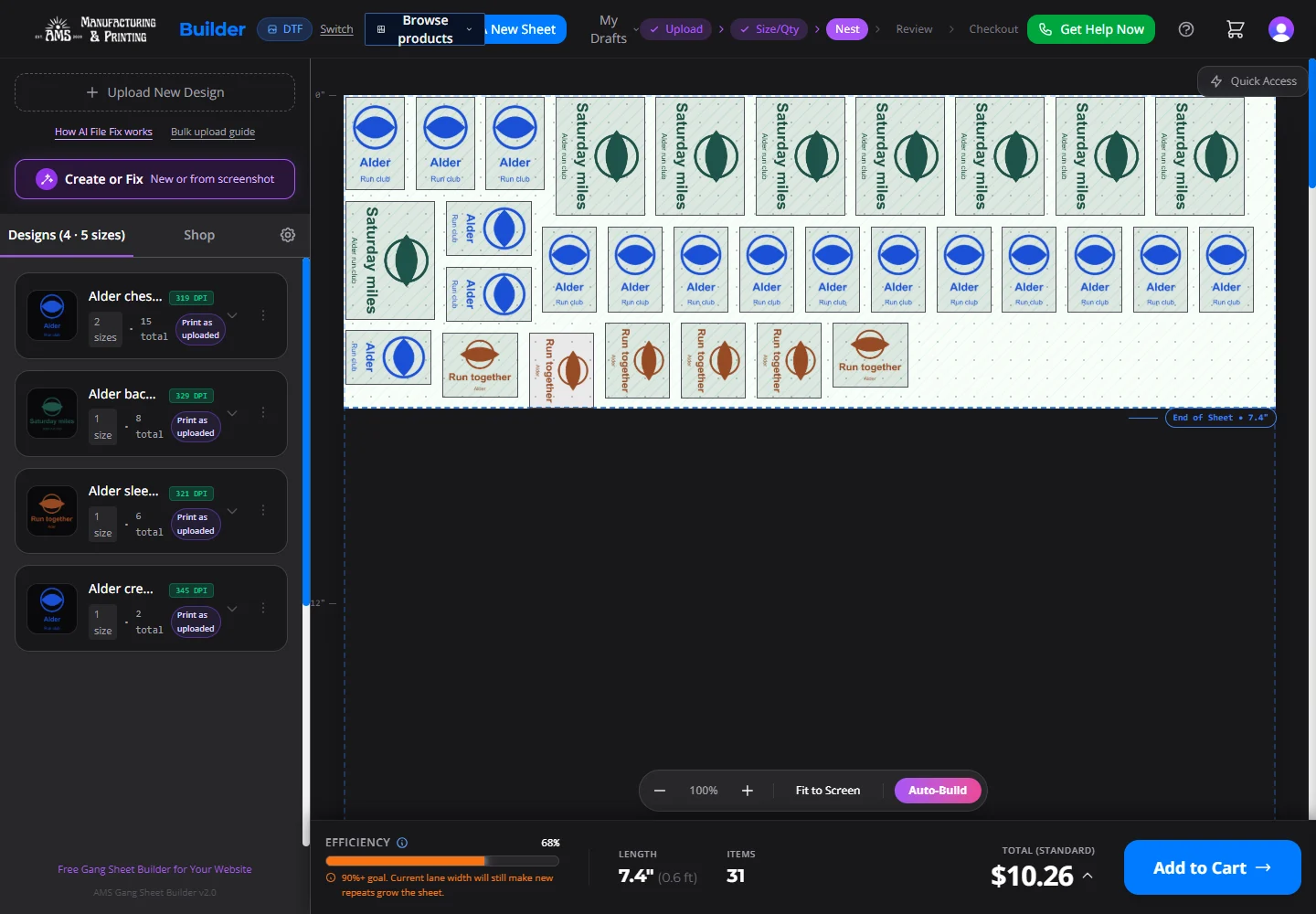
Upload the artwork for a job together. Give each design its own print sizes and quantities, then decide which files can stay as uploaded and which need help.
From uploaded files to a checked sheet
- Set sizes and copies for each design. Use another size row when the same logo needs a second print size. Add the copies across every row when checking the transfer total.
- Read the scope before changing several designs. Handling and preparation use eligible selected designs. Copy sizes has its own target choices and replaces those targets’ existing size rows and quantities.
- Choose the artwork help each file needs. Keep an acceptable original as uploaded. For an AI change, read the current credit quote and inspect the result. For staff File Fix, confirm the fee and artwork proof timing.
- Review the version you will use. Selecting designs does not approve AI output. Queued preparation can still be waiting or processing; inspect the completed version and its allowed print size before adding it.
- Add ready designs and return to unfinished work. The counted ready-only Add includes eligible ready designs across the batch, independently of checkbox selection. Use Continue your batch for the rest, then compare the actual sheet with your plan.
Compare color before choosing your print version
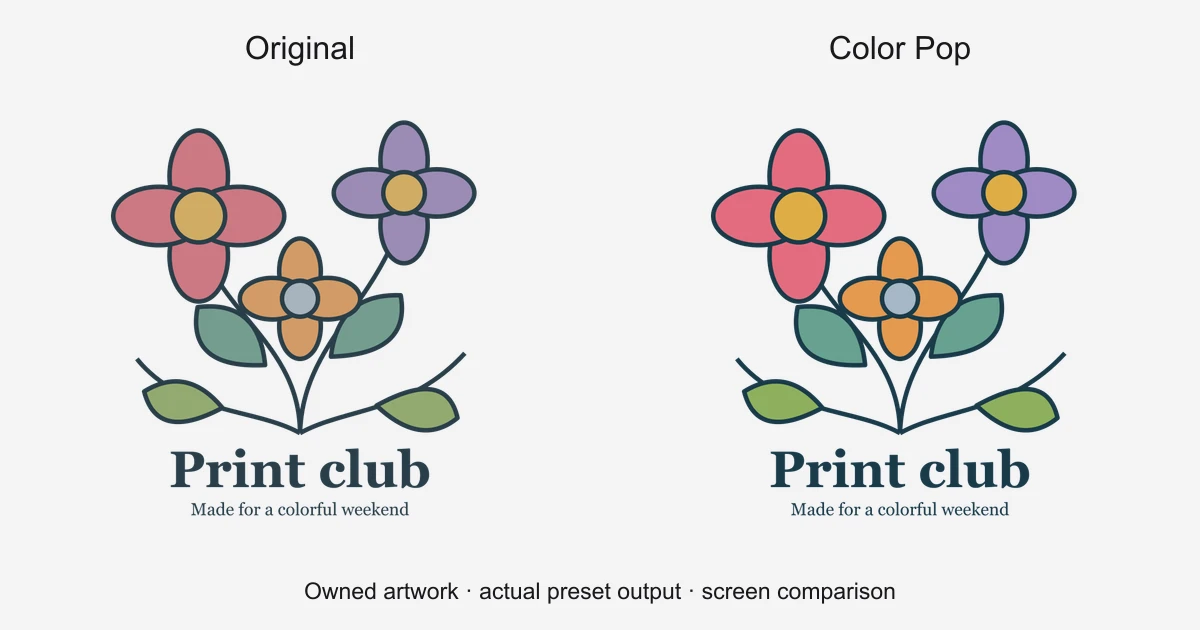
See whether you prefer Color Pop, Vivid, Auto Enhance or your uploaded original. Your artwork stays unchanged while you preview. Apply saves the treatment you choose.
Use selected groups of at most 50 eligible uploads, then check the actual result. Presets use no AI credits; printing and selected services remain separately charged. They do not repair missing detail or guarantee printed color.
Original stops a preview. Restore uploaded original resets one saved treatment before sheet addition.
Before you add the batch
Does selecting every design approve every AI result?
No. Selection sets the scope of handling and preparation actions. Review each generated result individually. The counted Make print ready action explicitly accepts eligible untouched selected uploads as they look now.
Does Copy sizes keep the target’s existing size rows?
No. It replaces the chosen targets’ size rows and quantities. The anchored width or height and copy counts come from the source; each target’s other dimension follows its own proportions. Check every target afterward.
Does queued mean my design is already on the sheet?
No. Preparation may still be waiting or processing. Check the completed version and its allowed print size, then explicitly add it to the sheet. A funded queue is separate from sheet addition and an order.
What happens when I add only the ready designs?
The counted ready-only action includes eligible ready designs across the batch, independently of checkbox selection. Unfinished designs stay saved. Check the current sheet, then use Continue your batch in the same accessible session or account for the rest.
Watch a batch reach the sheet
Follow an original-art example through separate sizes and copy counts, ready-only addition and saved-batch recovery.
Planning to reuse clear flat artwork at several print sizes? Compare Vector ProFiles for saved AMS printing.
A starting point for your sheet
Find a design, set your print size, and keep building.
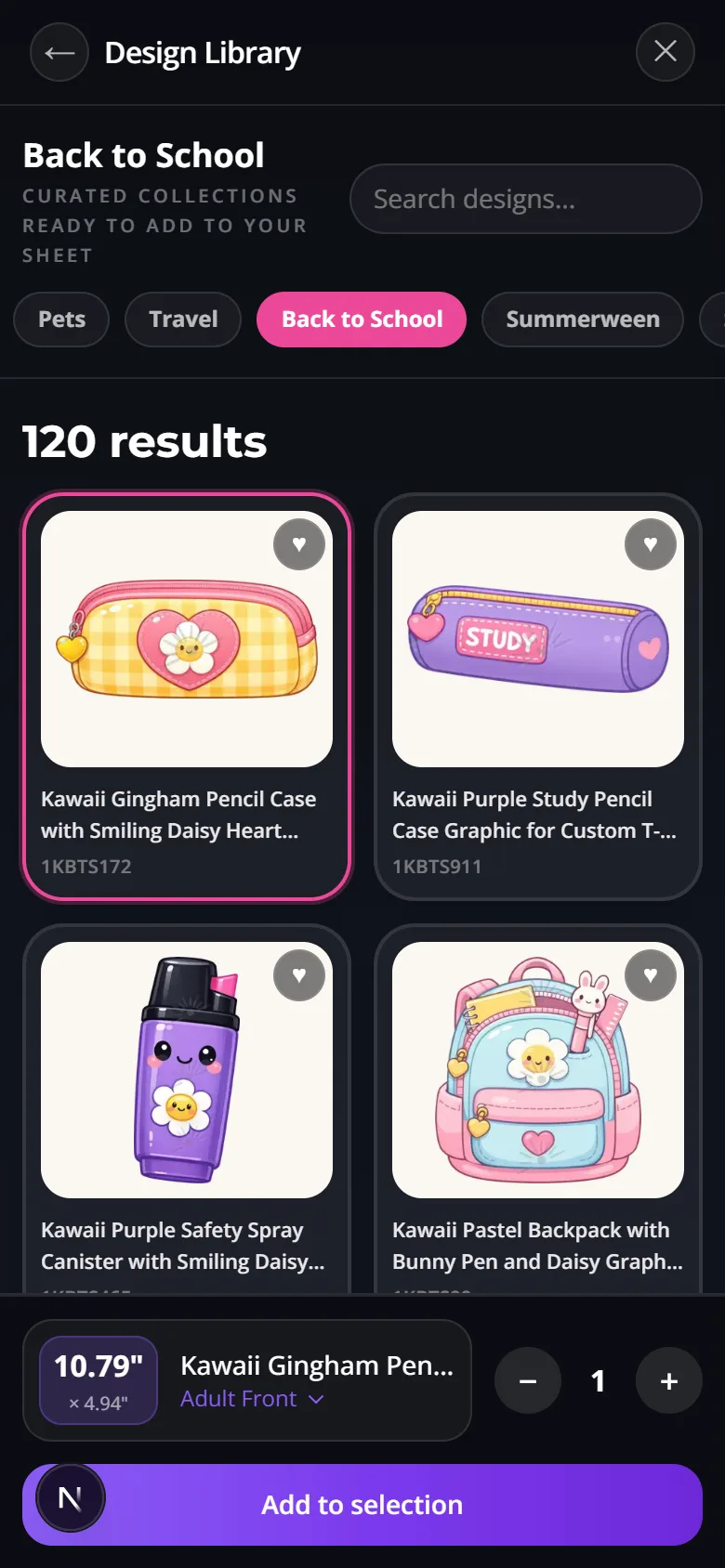
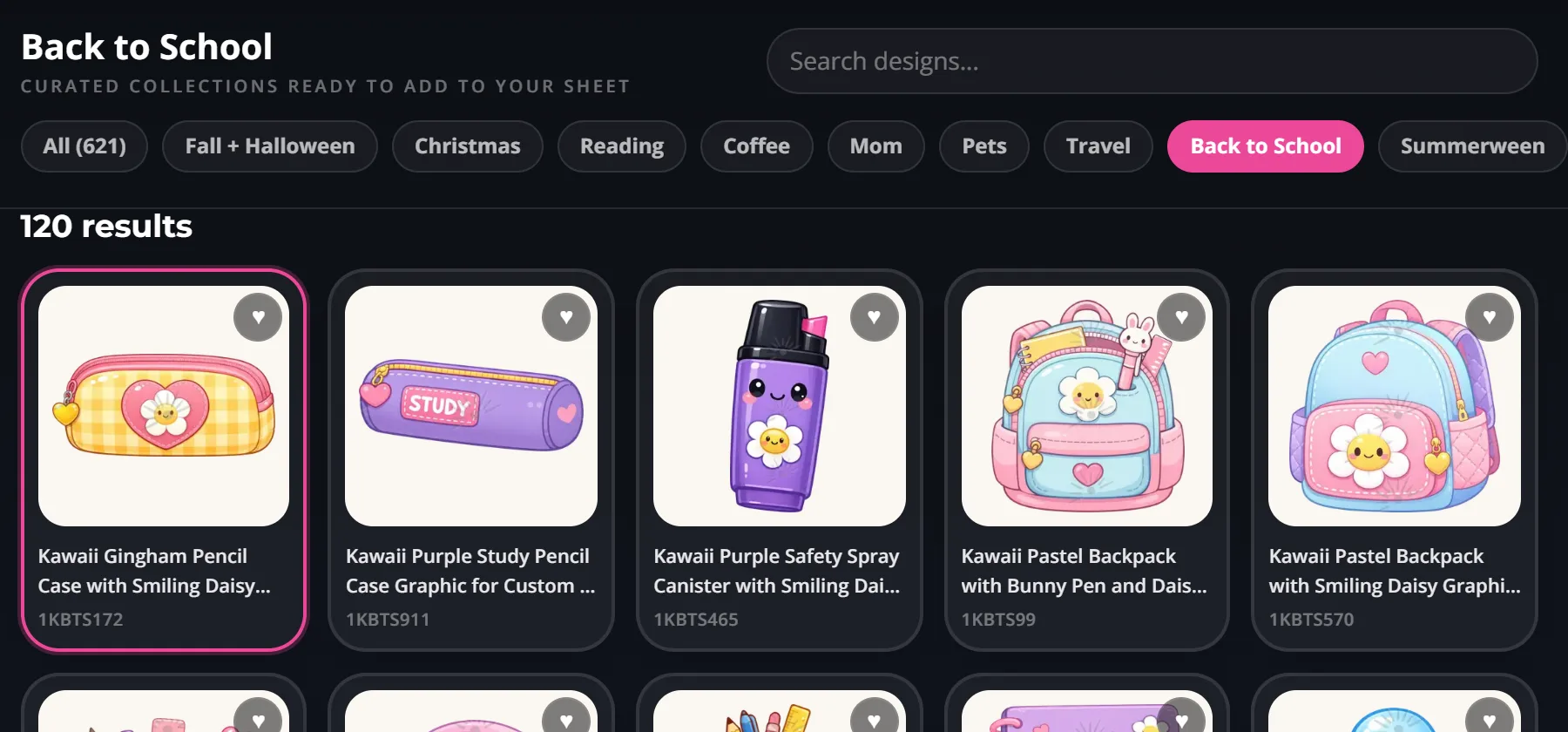
The Design Library lives inside the gang sheet builder. Its categories and published designs update as the library changes, so the artwork you see is the artwork currently available to select.
Step 1
Browse what is available
Open the library from the builder. Use search, active category filters, Fresh designs, and Popular right now or Featured picks when available.
Step 2
Choose size and quantity
Select a design, confirm the print dimensions, set the number of copies, and add it to your selection.
Step 3
Review the whole sheet
Finalize your selection and the builder arranges the sheet for you. Then check sheet placement and spacing, and inspect your proof before ordering.
Start from a fixed size, then let the builder take over.
The most popular gang sheet sizes — 22x24, 22x48, 22x60, 22x96, and 22x120 — each have their own page with stable pricing. Pick a starting size, then let the builder handle auto-pack, proofing, and flexible length expansion.
Everything the builder does once artwork lands
Start with any fixed size, then let AMS grow the sheet automatically if your artwork demands more room.
Set sizes and quantities, then let the builder nest the layout and reclaim blank space for extra value.
Trim whitespace, watch live DPI warnings, swap proof backgrounds, and approve a downloadable proof before production.
Use background removal, upscaling, screenshot-to-design, and AI-assisted artwork cleanup without leaving the order flow.
Real artwork help inside the order flow
- Upload PNG, PDF, SVG, AI, or JPG artwork directly into the builder
- Rebuild a rough reference, then check the artwork
- Remove backgrounds and auto-crop before the artwork hits the sheet
- Upscale soft files before you commit to final print size
- Create artwork in DesignGen and review the result
- Screenshot-to-Design
Turn a screenshot, photo, or reference image into print-ready art before you pack the sheet.
- DesignGen + cleanup tools
Create artwork, upscale soft files, remove backgrounds, and prepare graphics without leaving the AMS ecosystem.
- Same-day Houston DTF
Review locker pickup timing, courier rules, and rush-order realities before promising a deadline.
- How to apply DTF transfers
Send press settings and application instructions to your team after the order is placed.
Questions buyers ask before uploading artwork
Yes. Open the builder and choose Browse Free Design Library. Search or browse a category, select a design, choose its print size and quantity, and add it to your selection. Finalize the selection and the builder places and arranges the designs on your sheet automatically. You can also mix library designs with your own uploads.
Yes. The builder shows active categories and published designs from the current library. New designs appear in the newest preview and Fresh designs collection; the available choices can change over time.
No. The AMS builder can start without a fixed length. The fixed-size product pages are there to give you a predictable starting price, but the builder works just as well on its own.
Yes. Open the gang sheet builder on this site and upload one or several PNG, JPG, or WebP files. Upload PDF and SVG files one at a time. Review each design before adding it to the sheet.
AMS combines fixed-size product pages with infinite builder logic, plus auto-pack, proof approval, artwork cleanup tools, and same-day Houston pickup — all in one flow.
Order by 3:00 PM Central, Monday through Saturday. Most qualifying DTF jobs are ready in about 4 hours, with the same-day service window extending to 10:00 PM Central in the 24/7 lockers.
